See what your agent made, and who needs you
AI agents live in terminals now — but a terminal can only show them talking. rbterm closes the loop: an agent working in a pane can show you what it made, and every pane carries one of 5 status badges so ten agents in ten tabs never cross wires.
See what your agent sees
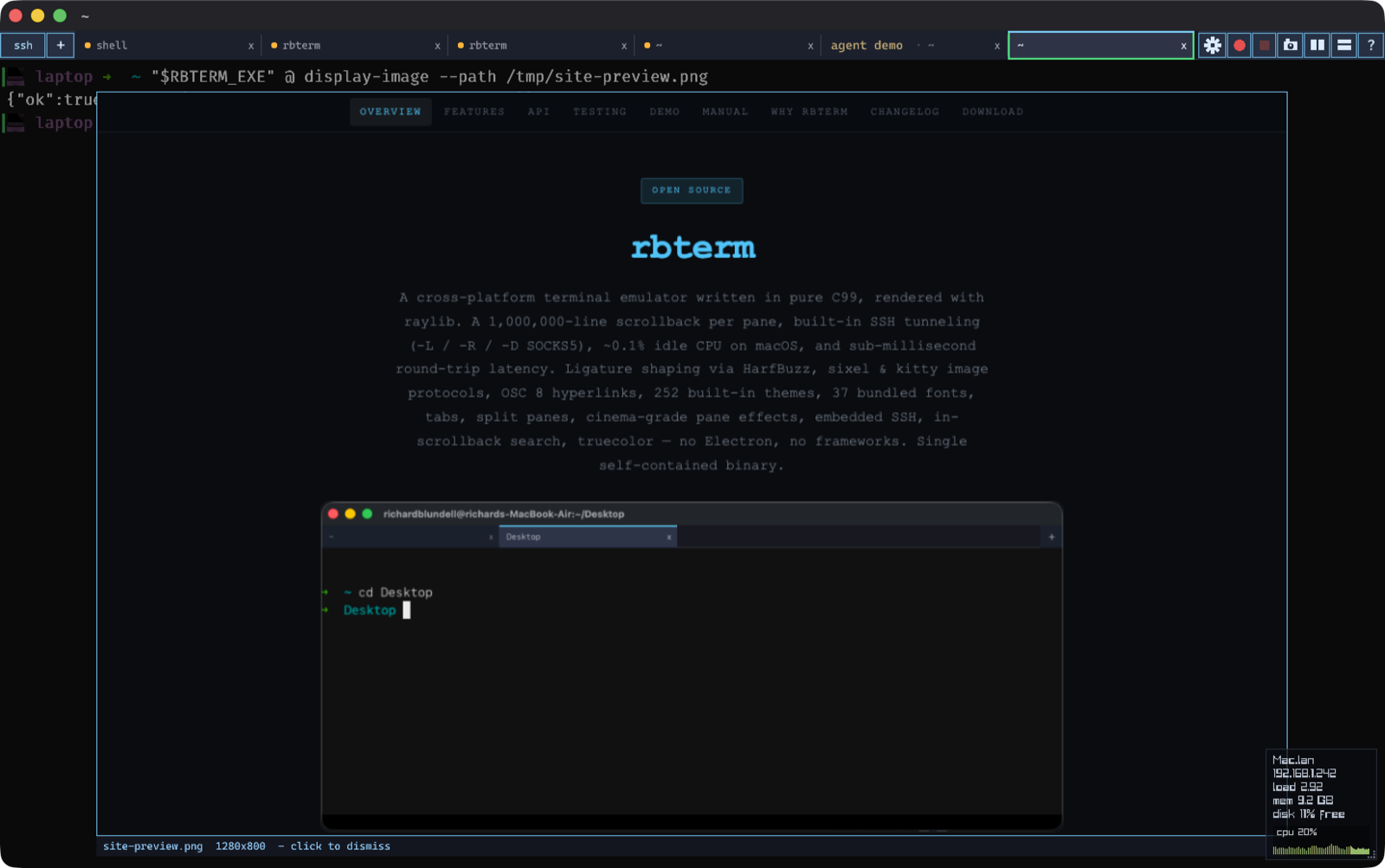
One command puts the screenshot an agent just captured into the pane it is working in.
Say Claude is building a website for you. It edits the CSS, runs Playwright, captures a screenshot — and then describes the screenshot to you in prose, because the terminal is text. You end up alt-tabbing to a file manager to see what your own agent just made.
In rbterm, the agent runs one command instead:
"$RBTERM_EXE" @ display-image --path /tmp/site-preview.png
The image appears instantly as an overlay in the agent's pane — scaled to fit, with a caption bar. Glance at it, click it, it's gone, and your session is exactly as it was. The view below is real: a Claude session capturing this very website and showing it in its own tab.
How it works
An overlay, not cell soup — designed for panes an agent is actively repainting.
Floats above the grid
The image is drawn over the pane, not injected into the cell grid like sixel/kitty graphics (which rbterm also supports). That matters because Claude Code repaints its interface constantly — a grid-anchored image would be scrolled away or overdrawn in milliseconds. The overlay is unaffected; the session keeps running underneath.
Click to dismiss
One click anywhere on the image removes it. Or script it away with --clear. Sending a second image replaces the first — an agent iterating on a design can flip through versions like a slideshow.
Scriptably verifiable
rbterm @ ls reports each pane's overlay — dimensions and whether it has actually been drawn — so scripts and test suites can assert an image really reached the screen.
Any image, no dependencies
PNG, JPEG, BMP, GIF (first frame) — decoded in-process and rendered by the GPU like everything else in rbterm. No helper programs, no protocol negotiation, works the same on every platform rbterm runs on.
It lands in the right tab
Run ten agents in ten tabs — each one's images appear only in its own pane.
rbterm gives every pane a stable id and exports it to the shell as RBTERM_PANE_ID. The rbterm @ client stamps that id into every request it sends, so a plain display-image from inside a pane targets that pane — not whatever tab you happen to be looking at. A busy multi-tab session never gets an image in the wrong place.
This survives restarts, too: rbterm's shells live in a background daemon, so quitting and reopening rbterm reattaches your sessions — and each reattached pane gets the same id its shell still holds in its environment. An agent that was mid-task before the restart keeps displaying to the right tab after it.
Wire up Claude Code
Two steps: switch it on, then tell Claude it exists.
-
Enable scripting
Settings → Window → Scripting (or launch with
--listen-on unix:/tmp/rb.sock). rbterm then exports the control-channel environment into every pane it opens. -
Teach Claude the command
Add a short instruction to your global
CLAUDE.md(or package it as a skill). That's it — any Claude Code session you start inside rbterm inherits the environment and knows where to show its work.Paste this into
~/.claude/CLAUDE.md:## rbterm: show images in the terminal When you produce an image the user should see — a screenshot, a chart, a Playwright capture — and $RBTERM_LISTEN_ON is set, display it with: "${RBTERM_EXE:-rbterm}" @ display-image --path /absolute/path/to.png Use --clear to remove it. If $RBTERM_LISTEN_ON is unset you are not running inside rbterm — skip silently.
Environment inside an rbterm pane
- RBTERM_LISTEN_ON
- Address of the control socket. Its presence means “you are inside rbterm and scripting is on.”
- RBTERM_EXE
- Absolute path to the running rbterm binary — the app bundle is never on
PATH, so use"$RBTERM_EXE" @ …. - RBTERM_PANE_ID
- The pane's stable id. Stamped into every
rbterm @request automatically, so commands self-target. Also usable explicitly:-m id:$RBTERM_PANE_ID.
Know when an agent needs you
Herd-style status badges in the tab bar — one glance tells you who's working, who's finished, who's stuck.
Running several agents means babysitting several tabs. rbterm derives a status for every pane and badges the most urgent one on its tab (new to the idea? — read the herd model, explained):

| Badge | Status | What sets it |
|---|---|---|
| Yellow exclamation mark | Attention | The program rang the bell or posted a notification (OSC 9) while you weren't looking — exactly what Claude Code does when it's waiting on your input — or an agent set status=waiting. |
| Cyan spinner | Running | A command is running (OSC 133 prompt marks), or an agent set status=working. |
| Green dot | Done | A command finished with exit 0 while the tab was backgrounded, or status=done. |
| Red dot | Failed | A command exited non-zero while the tab was backgrounded, or status=failed. |
| Amber dot | Activity | Plain output activity in a background tab. |
Viewing a tab (tab active and app focused) clears its badges. A bell that arrives while rbterm is in the background also posts a desktop notification, throttled to one per 10 seconds per pane. The running / done / failed states come from OSC 133 prompt marks — source tools/rbterm-shell-integration.zsh (or .bash) in your shell rc, or skip that entirely and let the agent declare its status (next section).
Tell rbterm what Claude is doing
Zero-config via the bell — or exact working / waiting / done transitions via hooks.
-
Zero-config: the bell
In Claude Code, run
/configand setpreferredNotifChanneltoterminal_bell. Claude rings when it needs you; the tab lights up with the yellow!and you get a desktop notification if you're in another app. Bells cross SSH natively, so this also works forclauderunning on a remote host in an SSH tab. -
Precise: hooks
For exact state transitions, drive the
statususer-var from Claude Code hooks. Paste this into~/.claude/settings.json— every Claude session started inside rbterm then badges its own pane:{ "hooks": { "UserPromptSubmit": [{"hooks": [{"type": "command", "command": "\"${RBTERM_EXE:-rbterm}\" @ set-user-vars -m \"id:${RBTERM_PANE_ID:-0}\" status=working >/dev/null 2>&1 || true"}]}], "Notification": [{"hooks": [{"type": "command", "command": "\"${RBTERM_EXE:-rbterm}\" @ set-user-vars -m \"id:${RBTERM_PANE_ID:-0}\" status=waiting >/dev/null 2>&1 || true"}]}], "Stop": [{"hooks": [{"type": "command", "command": "\"${RBTERM_EXE:-rbterm}\" @ set-user-vars -m \"id:${RBTERM_PANE_ID:-0}\" status=done >/dev/null 2>&1 || true"}]}] } }
Status words
- waiting · blocked · attention
- Yellow
!— attention. Clears when you view the tab. - working · running · busy
- Spinner — running. Persists until changed.
- done · ok · success
- Green dot — done. Clears when you view the tab.
- failed · error · fail
- Red dot — failed. Clears when you view the tab.
- status= (empty)
- Clears the override and returns the pane to its derived status.
Hooks talk to the local socket. For Claude running on a remote host, use the bell instead.
Grab the command it gave you
Double-click any word of a command your agent suggests, and rbterm selects the whole command — even when the agent wrapped it over two lines.
- Claude Code
! cmd - When Claude tells you to run something, it writes
! cmd. Double-click the!, the command or any argument and you get all of it. - Inline code
- Code in the middle of a sentence, like
git status --shortin a Claude Code or Codex reply, selects as one piece (v0.3.94 and later). - Wrapped commands
- Agents break a long command across lines themselves. rbterm selects every line and copies it back as one line, so pasting never sends a newline that runs half of it.
Everything else keeps rbterm’s usual smart word selection: plain text, separate lines of a code block, a log line that is all one colour, and file names in ls output. Triple-click still selects the whole row.
Then run it in a new tab
Right-click the selection and rbterm asks Run in a new tab?, showing exactly what will run. Run in new tab (or Enter) opens a tab in the same folder and runs it there; Copy copies it; Cancel (or Esc) does nothing. Nothing runs without that confirmation, and Claude’s ! prefix is dropped for you (v0.3.94 and later).
OpenAI Codex: no setup at all
Run codex in any tab. rbterm reads the window title Codex keeps updated, so the badges light up with no config, no hooks and no bell setting.
- Spinner in the title
- Spinner badge — Codex is working. Follows Codex live, so it stops the moment Codex does.
- [ ! ] Action Required
- Yellow
!— Codex is waiting on an approval or a question. Stays lit until you answer it. - Spinner stops, tab unseen
- Green dot — Codex finished in a tab you weren’t looking at. Clears when you view the tab.
The title travels with the output, so this works for codex on a remote host in an SSH tab, and inside tmux with set-titles on. Scripts see the same states: rbterm @ ls reports them, and -m state:attention finds every Codex waiting on you.
Settings → Codex
-
Alternate screen
Makes Codex draw inline instead of taking over the screen, so scrollback and Cmd+F search keep working through a whole session.
-
Notifications
Codex doesn’t recognise rbterm yet, so out of the box its alerts are a bare bell. This switch makes them carry their text, which rbterm shows as a desktop notification.
-
Image skill
Installs a skill that teaches Codex the
display-imagecommand from SEC 01, so Codex can pop its screenshots into its own pane. Codex’s sandbox blocks the rbterm socket by default, so it will ask your permission the first time.
Codex has no environment variable for these options, so each switch edits exactly one line of ~/.codex/config.toml (or $CODEX_HOME) and leaves the rest of the file untouched. rbterm saves your original once as config.toml.rbterm-backup. The switches apply to Codex sessions you start afterwards. Codex’s own hooks also work with the status words above, once you’ve trusted them in Codex, but the badges don’t need them.
Script the herd
Statuses are queryable and waitable — agents can babysit agents.
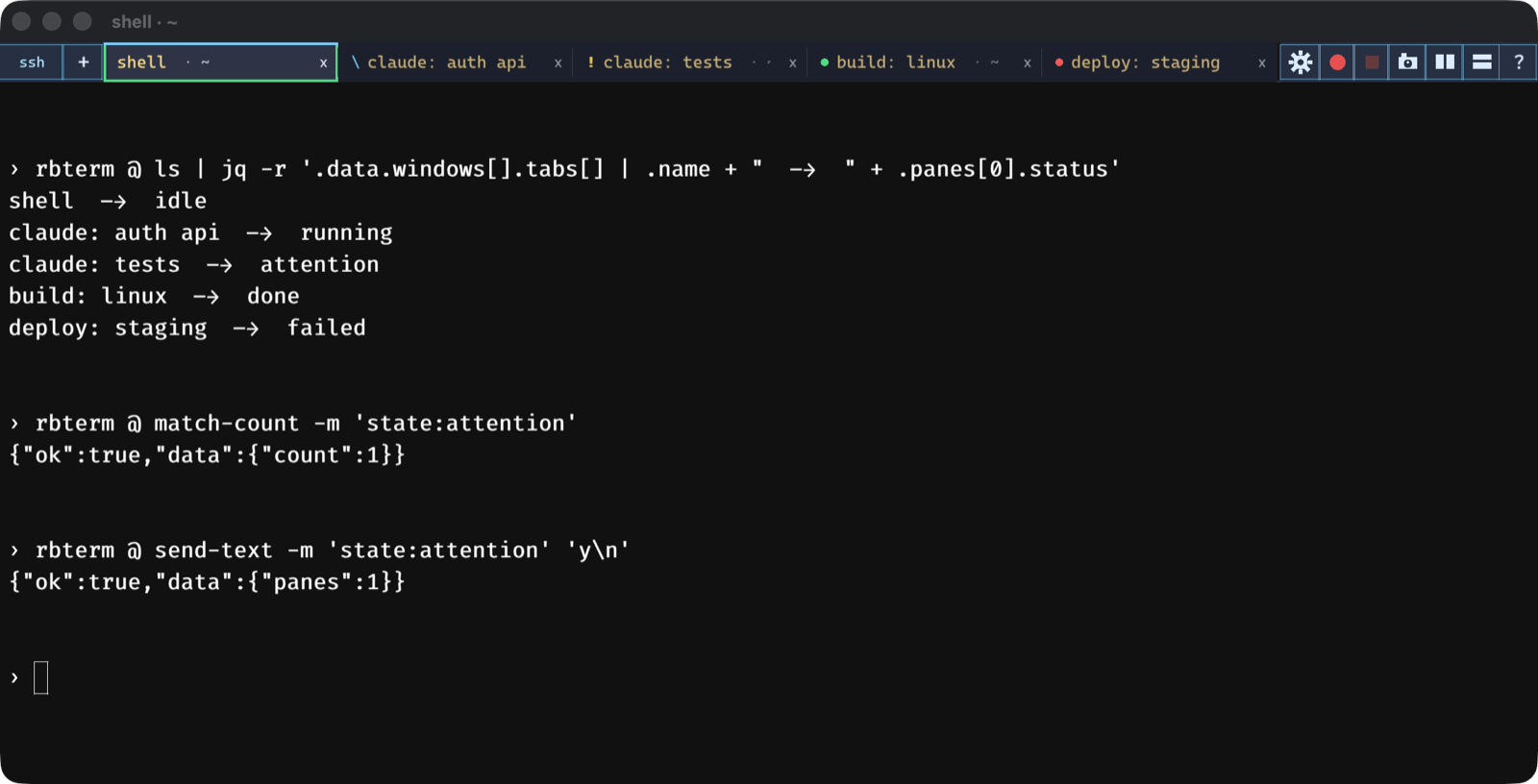
Every pane in rbterm @ ls carries a "status" field, and the match engine accepts it as state:<word>:
# see every pane's status at once:
rbterm @ ls | jq -r '.data.windows[].tabs[] | .name + "  ->  " + .panes[0].status'

# answer whichever pane is blocked, without leaving your tab:
rbterm @ send-text -m 'state:attention' 'y\n'

# wait for pane 3's command to finish — the agent-to-agent wait primitive:
until rbterm @ match-count -m 'id:3 and (state:done or state:failed)' \
      | grep -q '"count":[1-9]'; do sleep 2; done
match-count returns {"ok":true,"data":{"count":N}} and never errors on zero — zero is the answer. One subtlety worth knowing: a command that finishes in a background tab reports done or failed until you view the tab — not idle — so wait loops must poll for the completion states.
Command reference
The agent-facing additions — everything else is on the API sheet.
| Command | What it does |
|---|---|
| display-image | Show an image as an overlay in a pane (--path FILE; alias icat). Defaults to the calling pane, else the active one; target explicitly with -m. A second call replaces the image; --clear removes it. |
| ls | Reports each pane's overlay as "image": {width, height, shown} and a derived "status" (running / done / failed / attention / idle). |
| set-user-vars | Attach metadata to a pane; status=working|waiting|done|failed (and synonyms) drives the tab badge directly, status= clears it. |
| match-count | Count panes matching an expression — the cheap probe for wait loops (-m 'state:done or state:failed'). Returns {"count":N}; zero is a normal answer, not an error. |